Hetzner
Deploy Dalmatian on a Hetzner Cloud server.
Before you start
- A Hetzner Cloud account. Sign up at console.hetzner.cloud if you don't have one. A card on file is required.
- A CX22 (2 vCPU / 4 GB) or CX32 (4 vCPU / 8 GB) server.
- An LLM credential. A ChatGPT Plus or Pro subscription, or an API key from OpenAI, Anthropic, or Google. You'll add this after the server is up.
Create your server
From the Hetzner Cloud Console, open or create a project, then click Add Server.
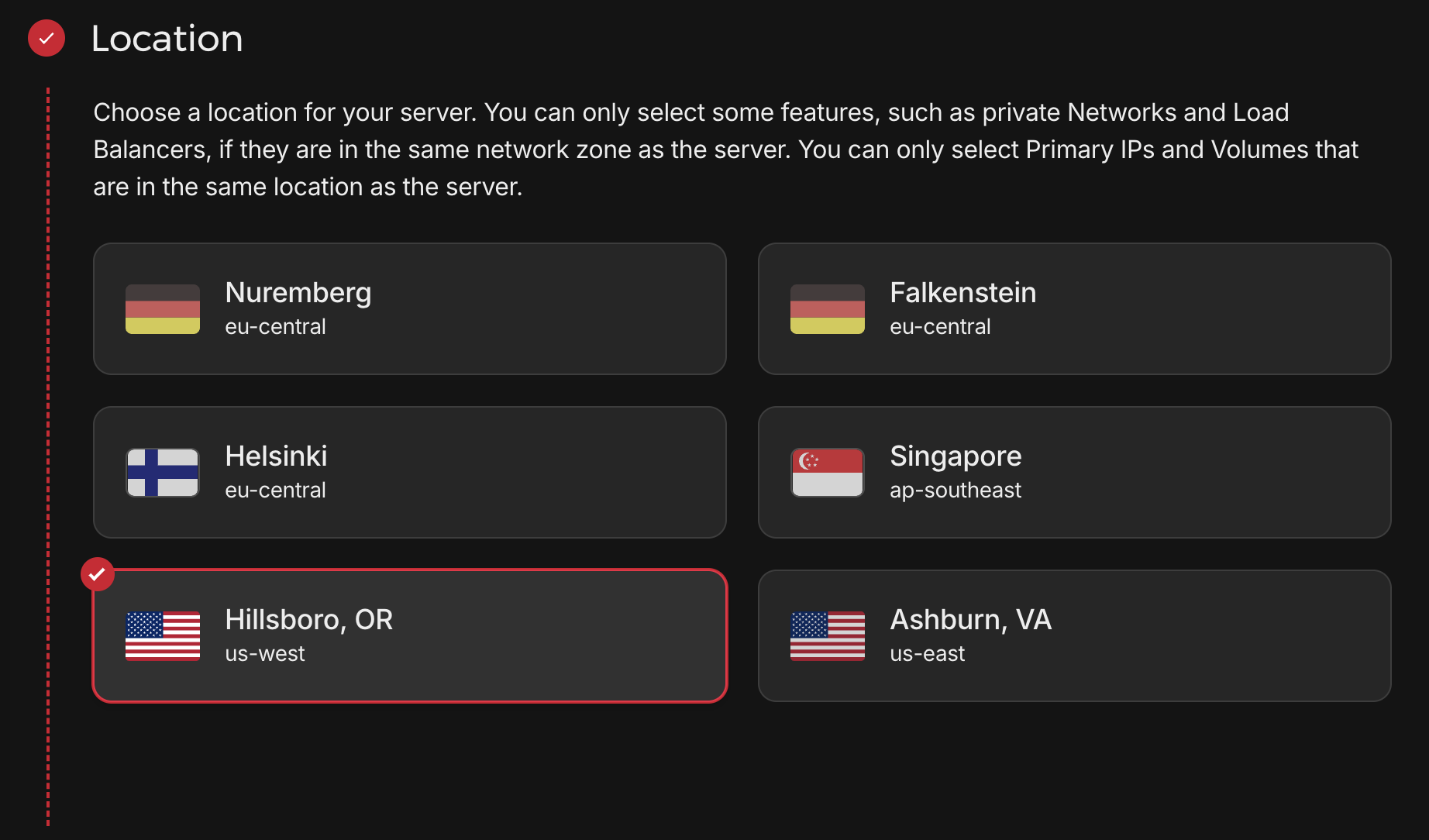
Pick a location
Scroll down to choose the location nearest where you'll use the dashboard.
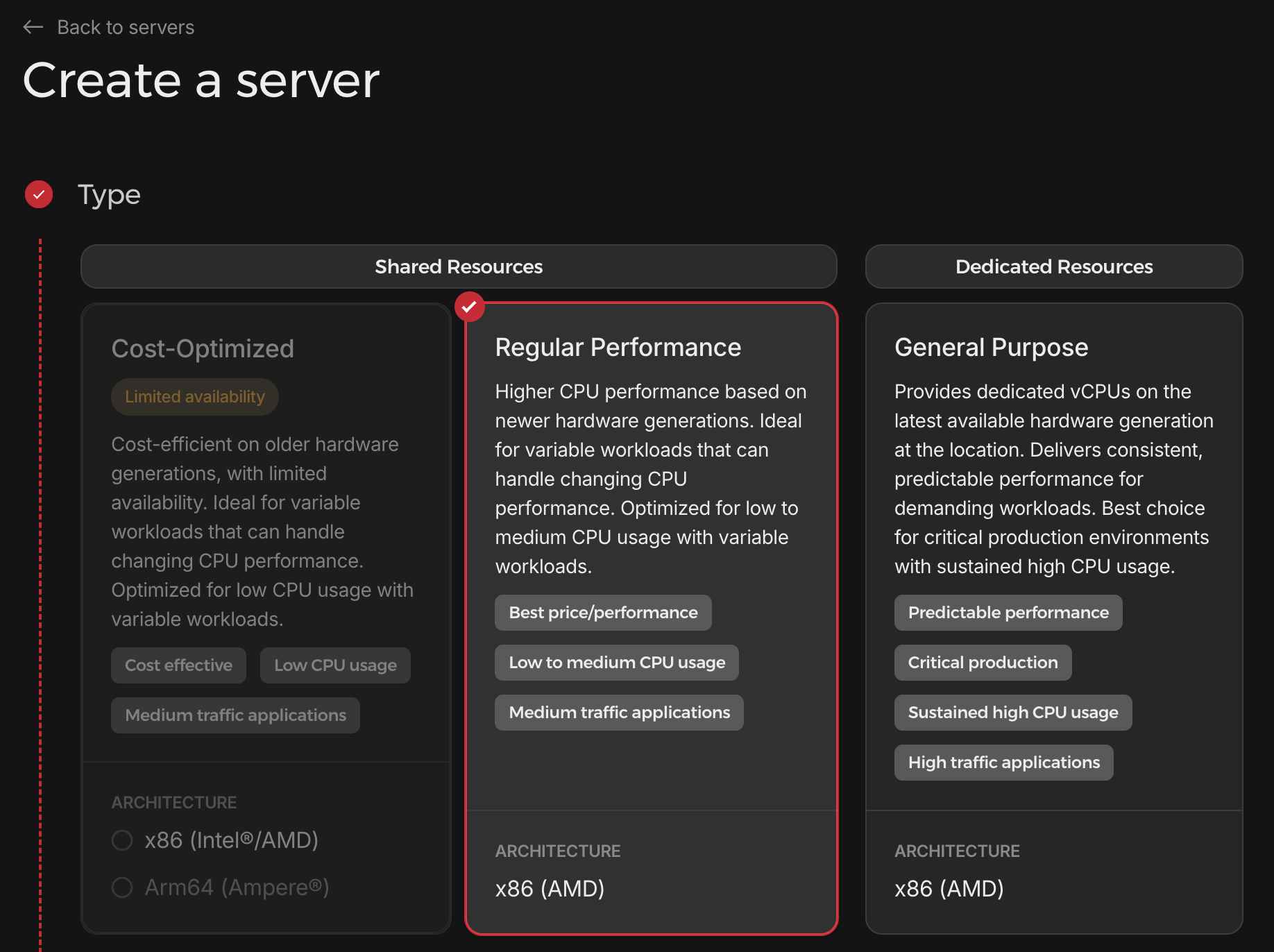
Choose Regular Performance
Scroll back up to Type and select Regular Performance.
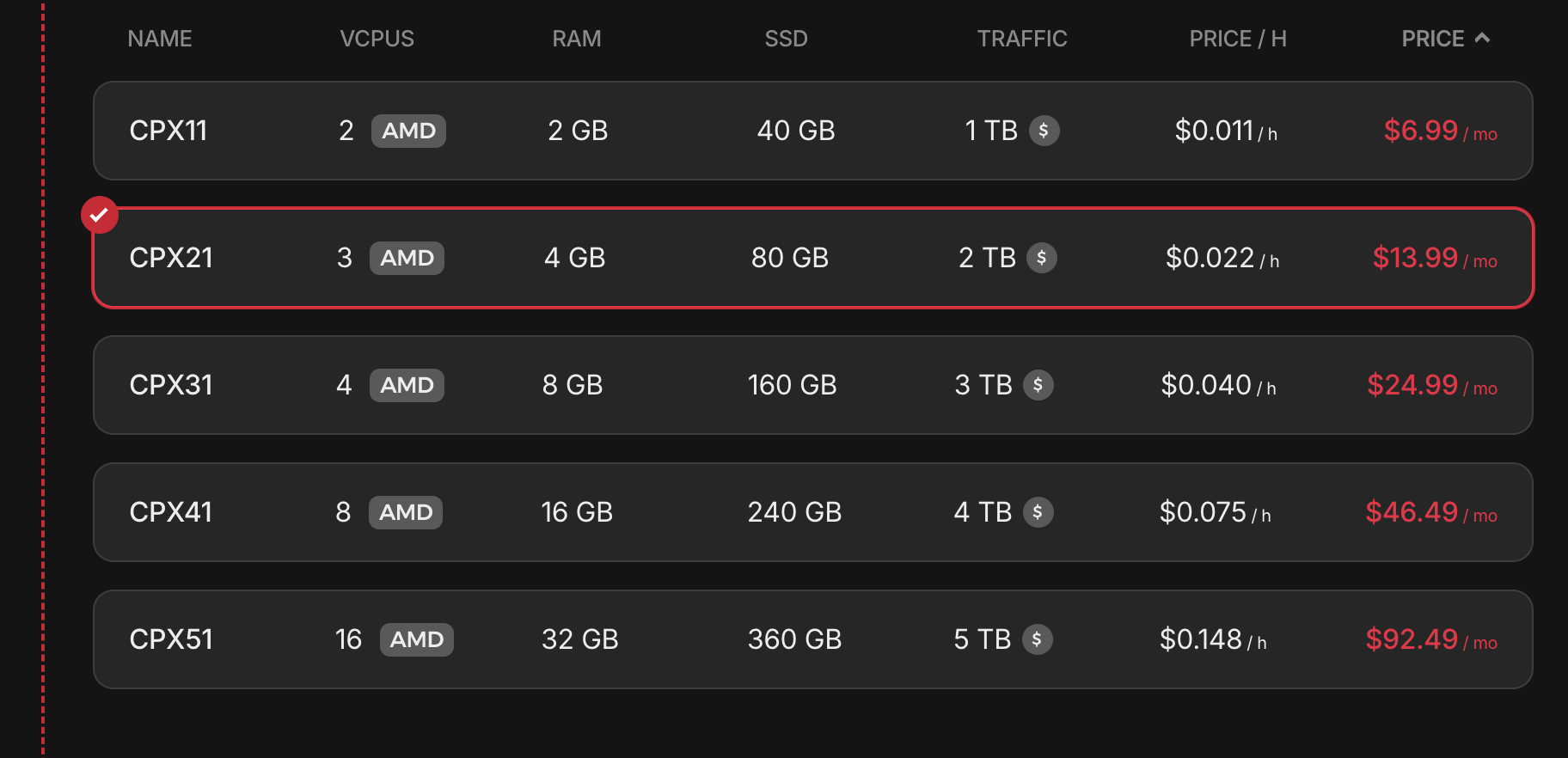
Pick the CX21 plan
Scroll down within the Type section and choose CX21 (3 vCPU / 4 GB) or larger. The minimum requirement for RAM is 4 GB.
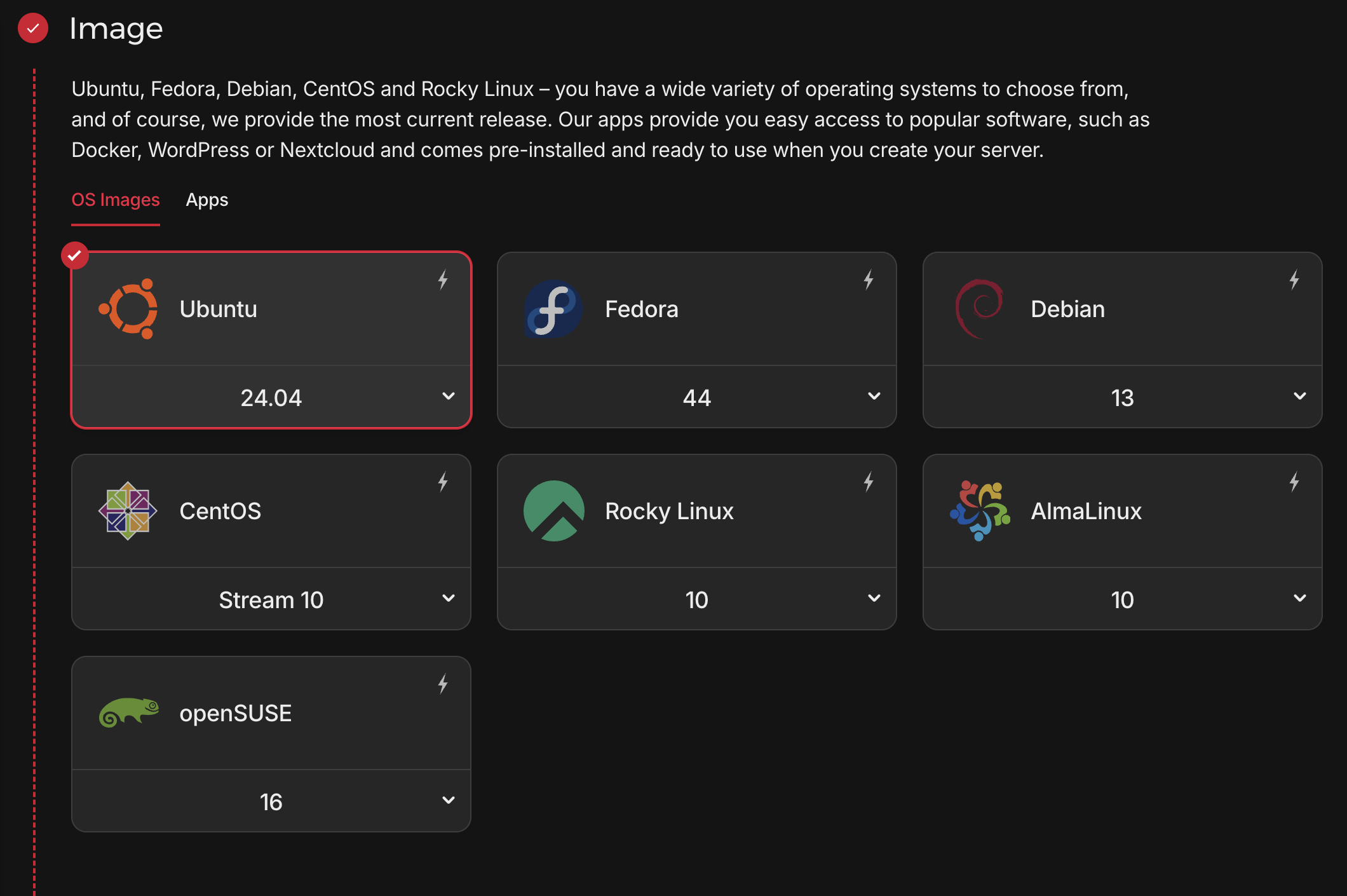
Choose Ubuntu 24.04
Under Image, select Ubuntu 24.04. Dalmatian requires this version.
Include a public IPv4 Address
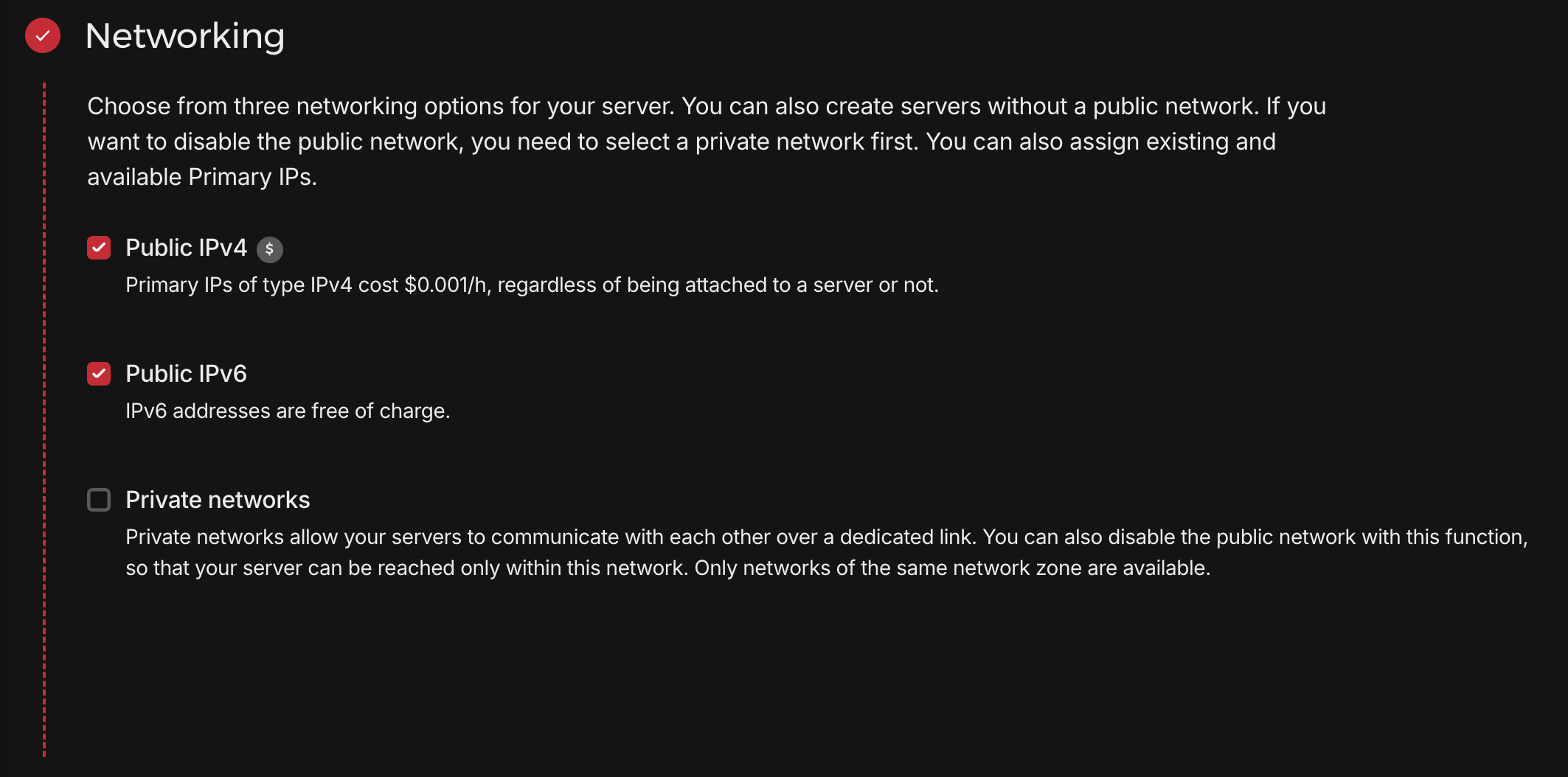
Under Networking, make sure the checkbox for Public IPv4 is checked.
Paste the install script under Cloud config
Have your invite code ready (from your invite email or message). You'll drop it into the command below in place of YOUR_INVITE_CODE.
Scroll to Cloud config (Hetzner's name for cloud-init user data) and paste the snippet. The server runs it on first boot. It installs Dalmatian, provisions HTTPS, and starts the dashboard.
#!/bin/bash
curl -fsSL https://get.dalmatian.dev/alpha?token=YOUR_INVITE_CODE | bash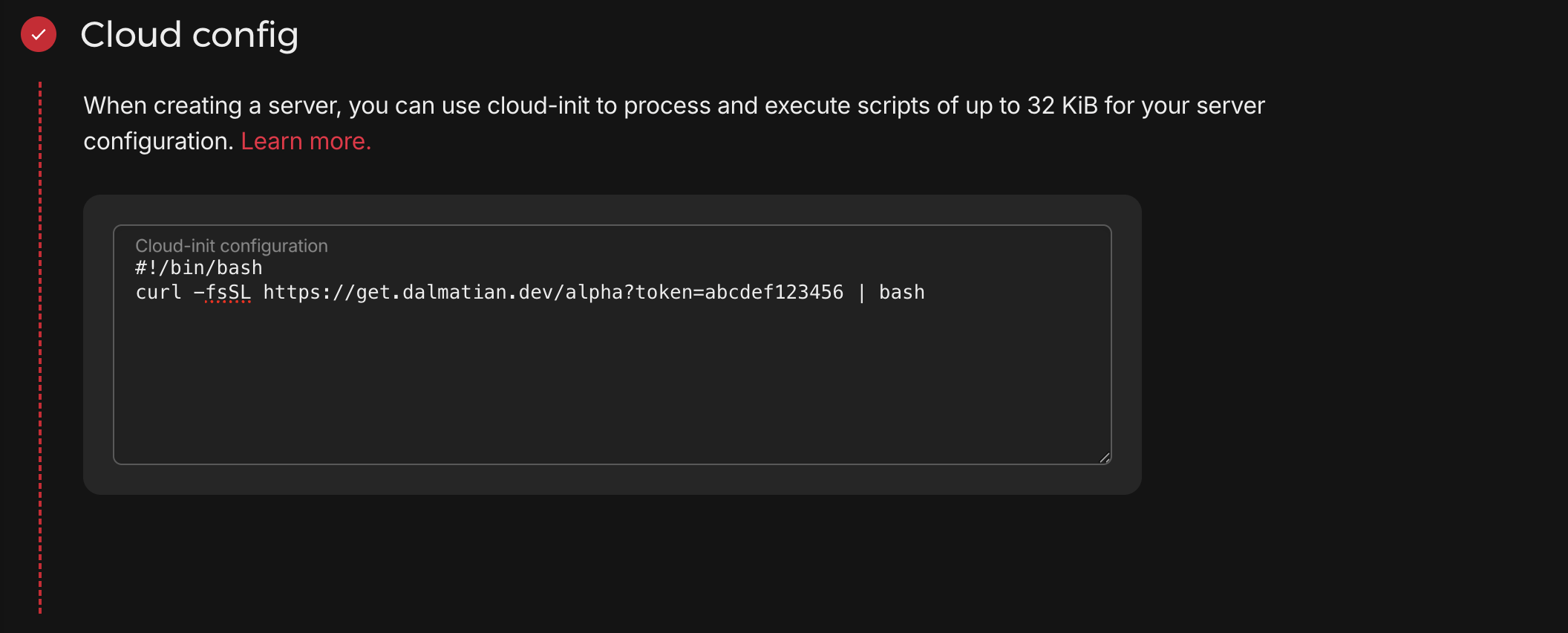
Name it and create
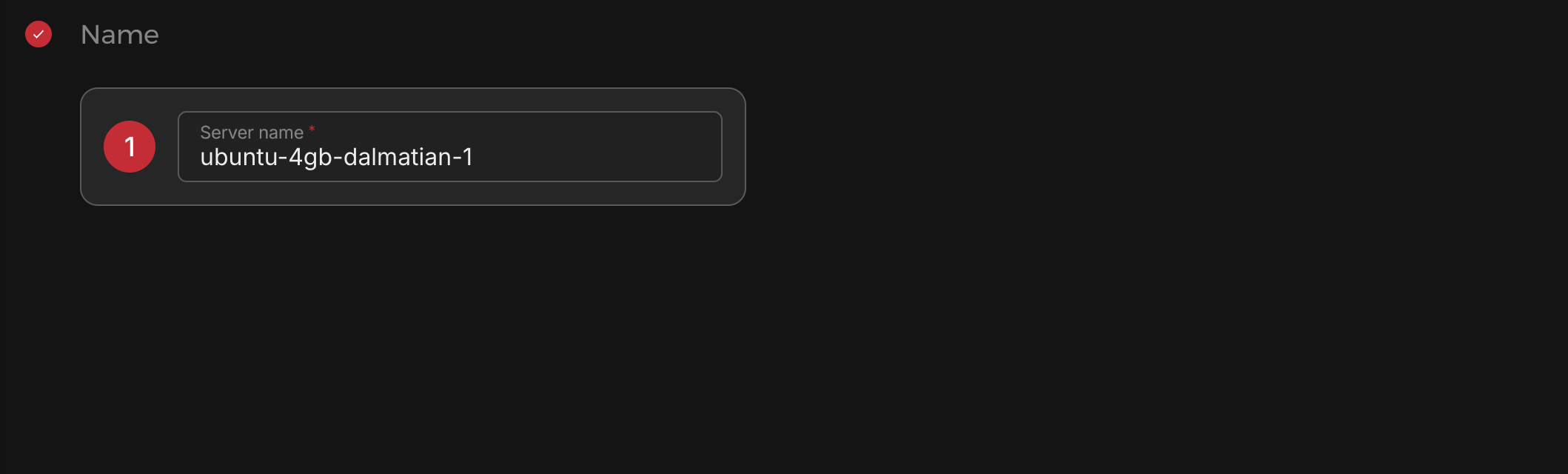
Any server name works. Click Create & Buy now and wait about 30 seconds for provisioning.
Note the server's IPv4 address
The IP is shown on the server's overview page and is of the format 1.2.3.4 where 1, 2, 3, and 4 are other numbers. Copy it; you'll need it to open the dashboard.
Next: open the dashboard
The server is provisioned, but the install script needs up to ten minutes to finish setting up Dalmatian and HTTPS. After that the rest of setup is the same on every cloud. Continue in the Dashboard guide.