Vultr
Deploy Dalmatian on a Vultr Cloud Compute instance.
Before you start
- A Vultr account. Sign up at my.vultr.com if you don't have one. A card on file is required.
- A Shared CPU 2 vCPU / 4 GB instance (the
vc2-2c-4gbplan, $20/mo). - An LLM credential. A ChatGPT Plus or Pro subscription, or an API key from OpenAI, Anthropic, or Google. You'll add this after the instance is up.
Sign in to Vultr
Sign in at my.vultr.com. Everything in this guide happens in the Customer Portal you land on.
Save the startup script first
Vultr requires the install script to be saved to your account before deploy. Save it once, then attach it when you create the instance.
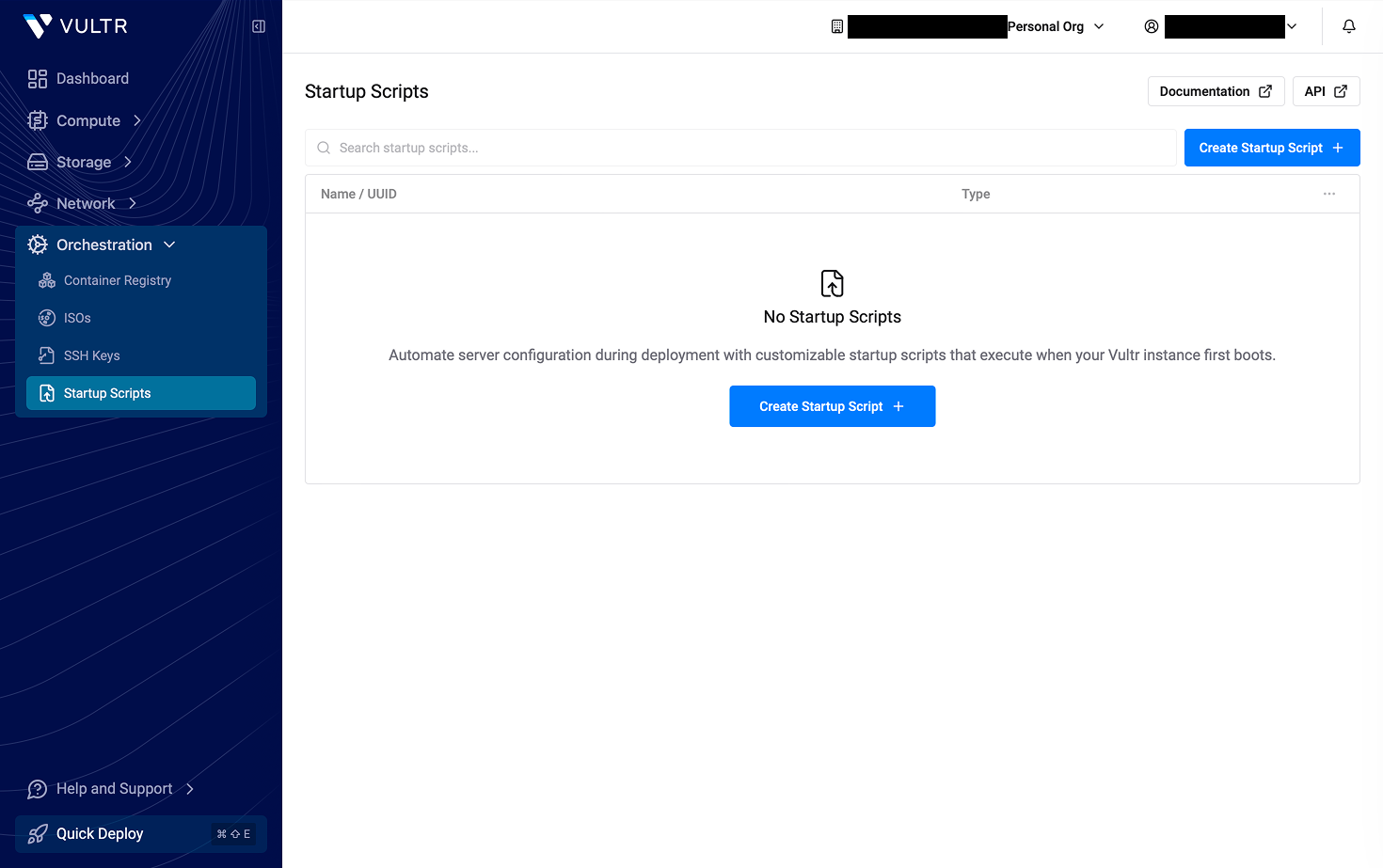
Open Startup Scripts
In the left sidebar, go to Orchestration → Startup Scripts, then click Create Startup Script.
Create the startup script
Have your invite code ready (from your invite email or message). You'll drop it into the command below in place of YOUR_INVITE_CODE.
In the Create Startup Script panel, leave the type set to Boot Script, name it Dalmatian, paste the snippet below into the script field, and click Create Startup Script. Vultr runs it once when the instance first boots. It installs Dalmatian, sets up HTTPS, and starts the dashboard.
#!/bin/bash
curl -fsSL https://get.dalmatian.dev/alpha?token=YOUR_INVITE_CODE | bash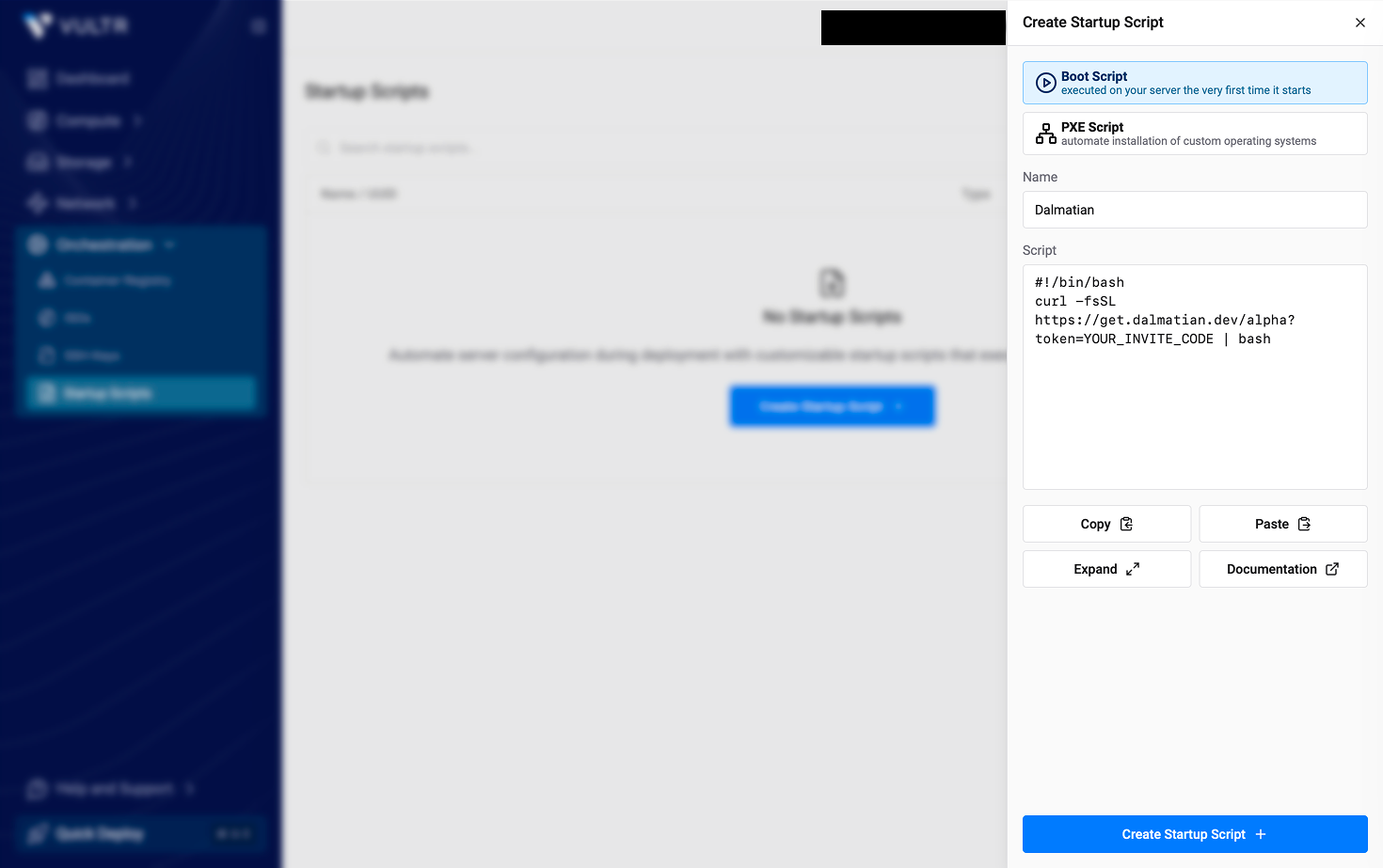
Deploy an instance
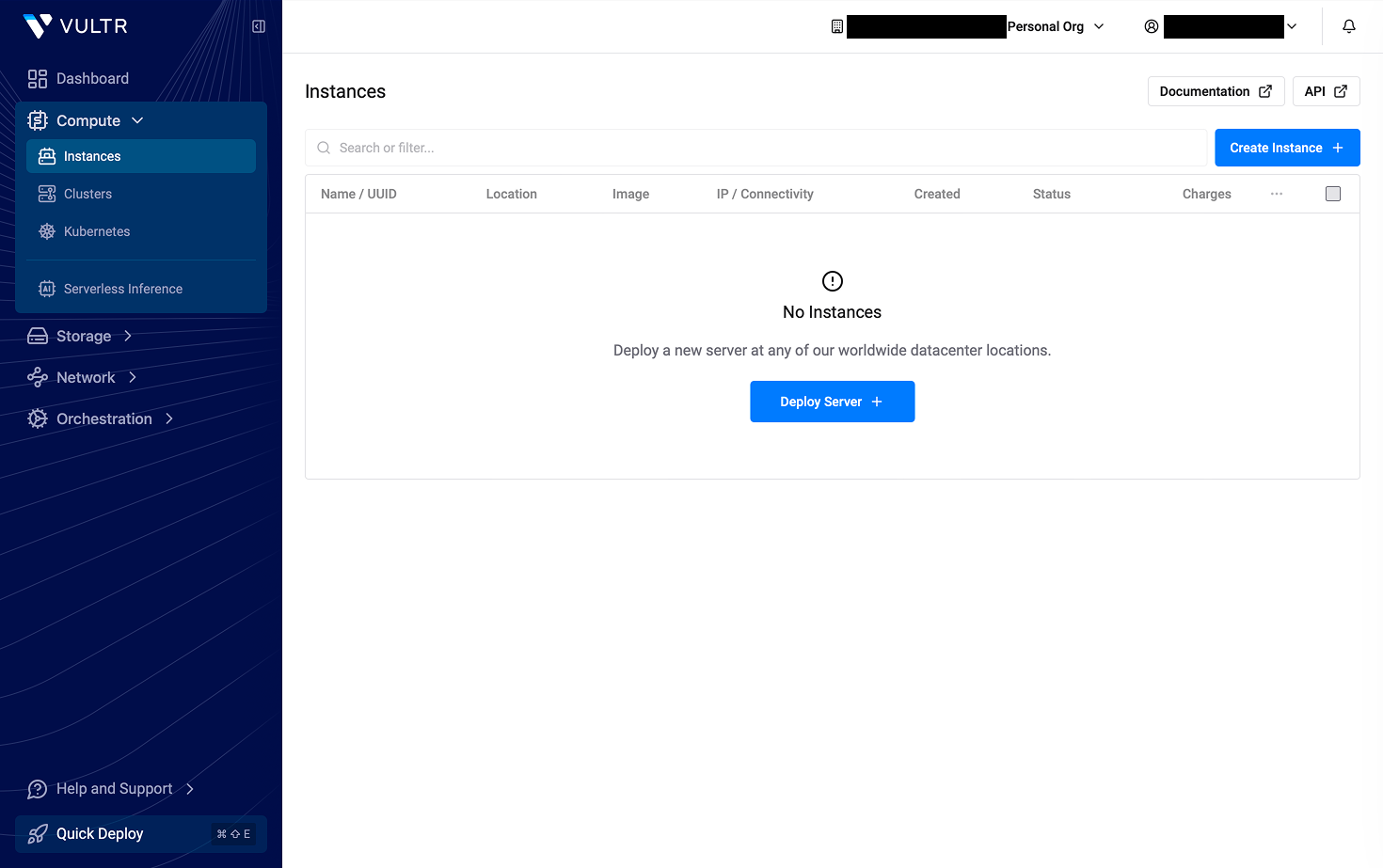
Start a deploy
In the left sidebar, go to Compute → Instances and click Deploy Server.
Pick a type and location
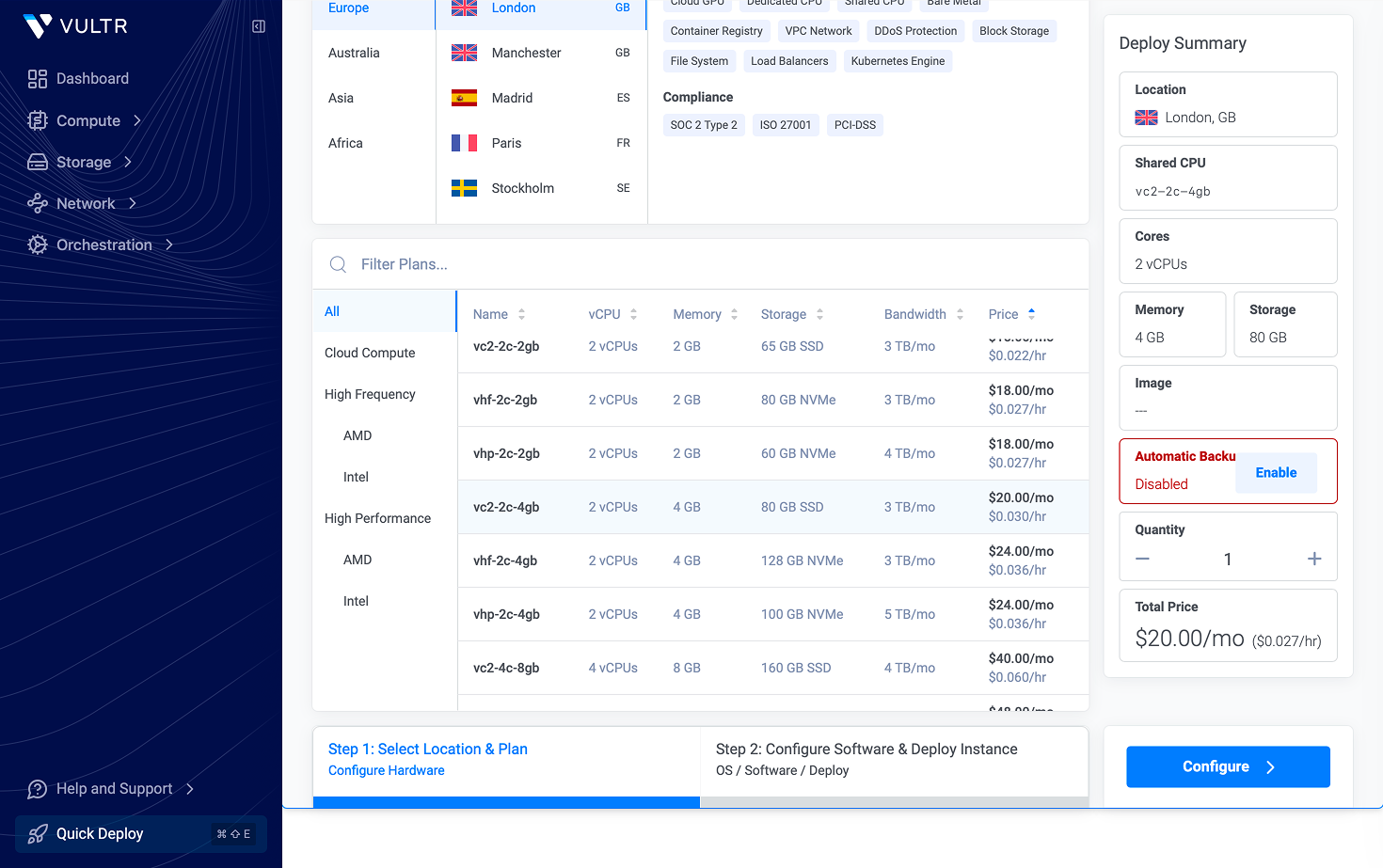
Under Choose Type, select Shared CPU. Then choose a location close to where you'll use the dashboard.
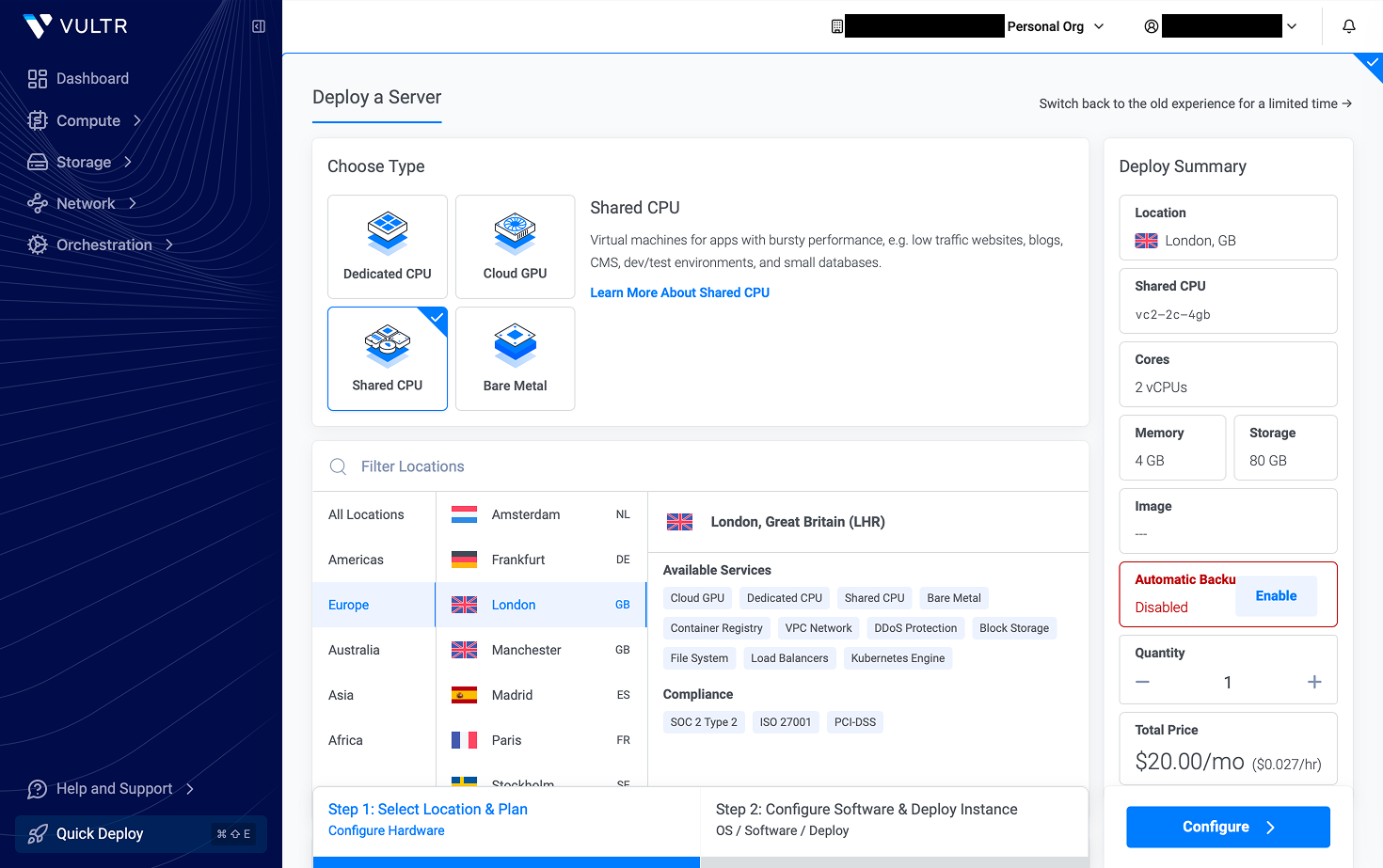
Pick the 2 vCPU / 4 GB plan
In the plan list, select vc2-2c-4gb — 2 vCPUs, 4 GB memory, 80 GB SSD. You can resize later.
Choose Ubuntu 24.04 and attach your startup script
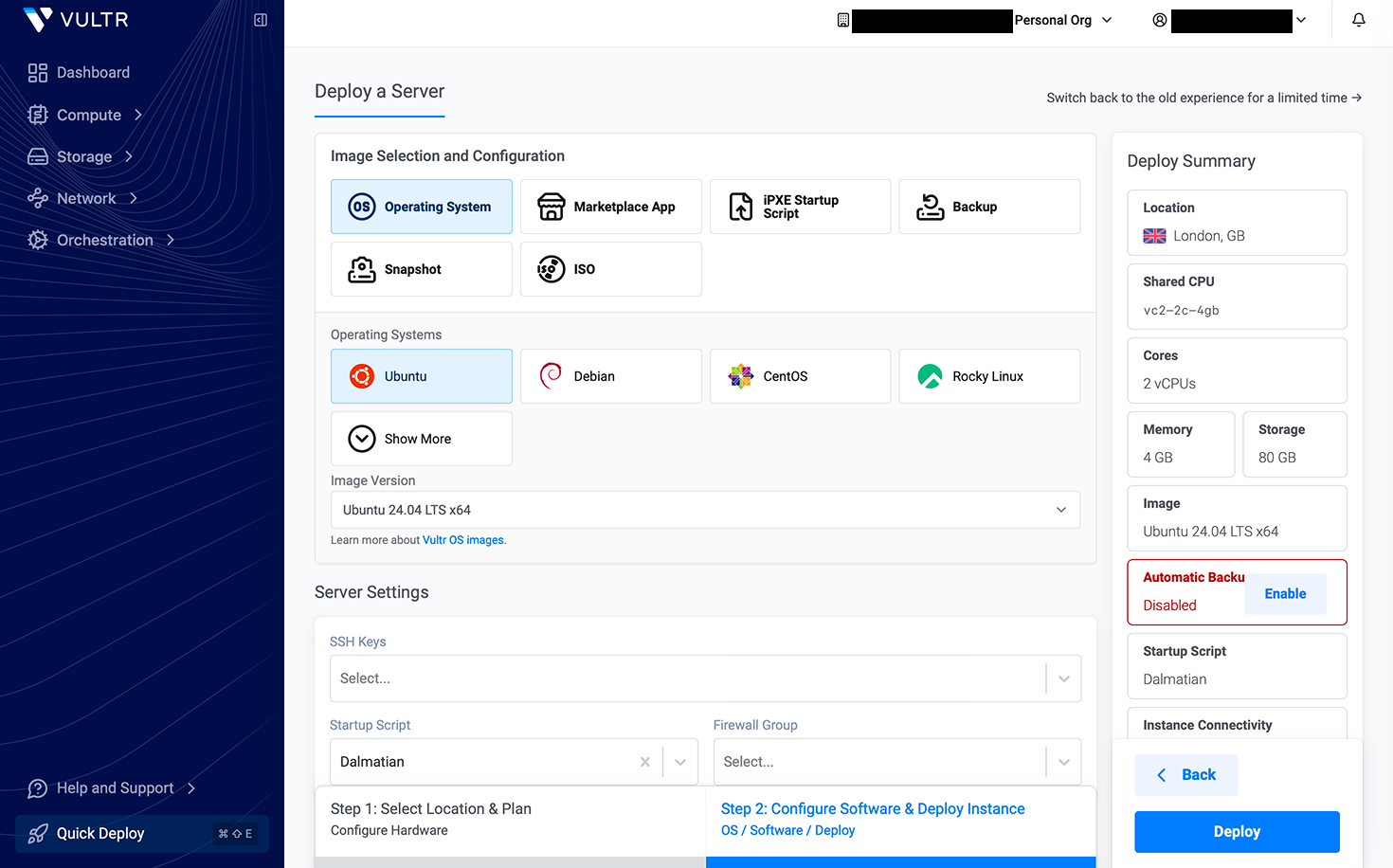
Under Image Selection and Configuration, pick Operating System → Ubuntu, with Ubuntu 24.04 LTS x64 as the image version; Dalmatian requires this version. Then scroll to Server Settings and, under Startup Script, select the Dalmatian script you saved earlier.
Leave the remaining defaults
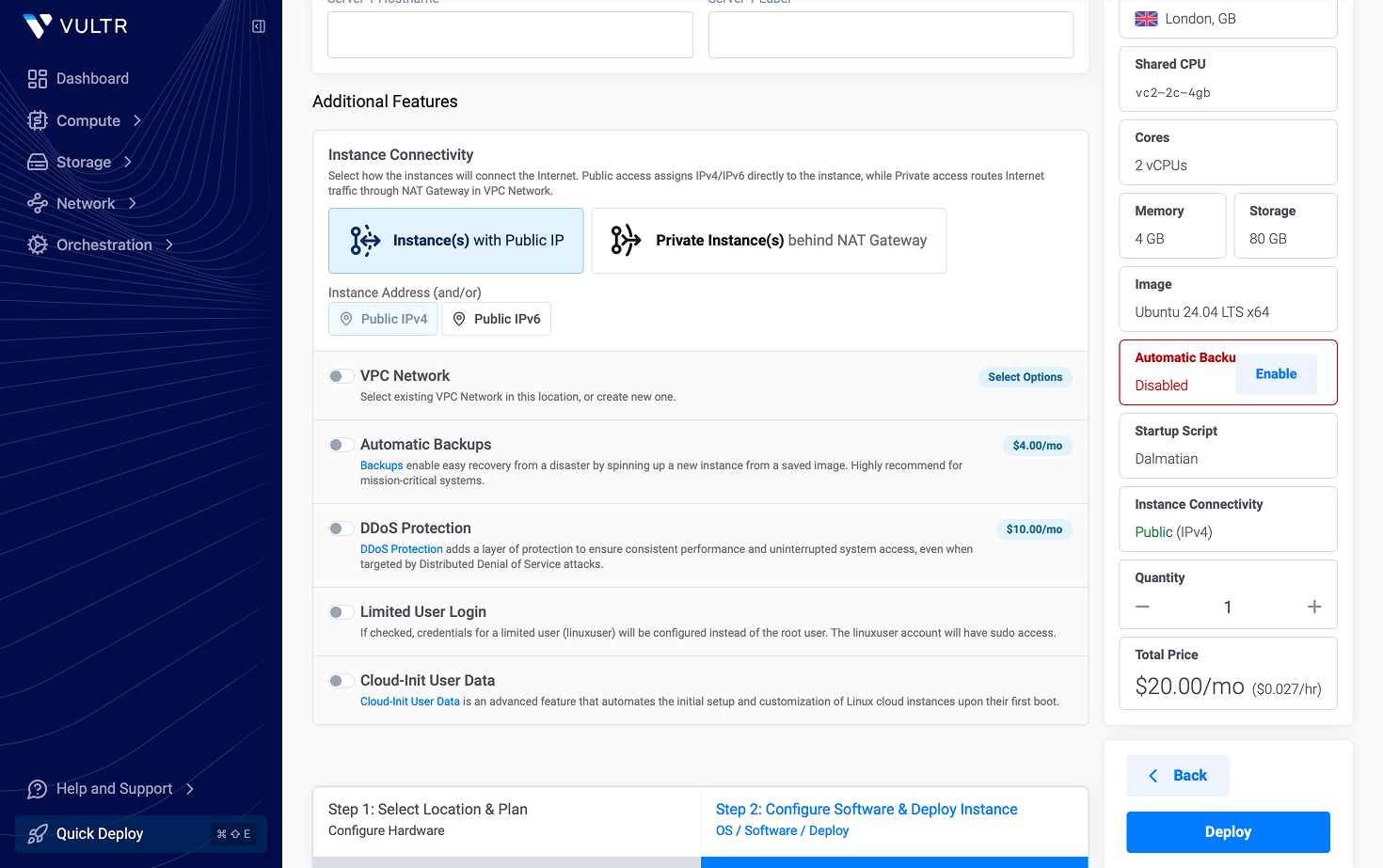
Under Additional Features, keep the defaults: public IPv4 connectivity and no extras. Automatic Backups are optional — disable them if you'd rather skip the surcharge. Before deploying, check the Deploy Summary shows the Ubuntu 24.04 image and the Dalmatian startup script.
Deploy and note the IPv4 address
Optionally give the instance a hostname, then click Deploy. The instance appears in the list with status Pending; its public IPv4 is shown in the IP / Connectivity column. Copy it; you'll need it to open the dashboard.
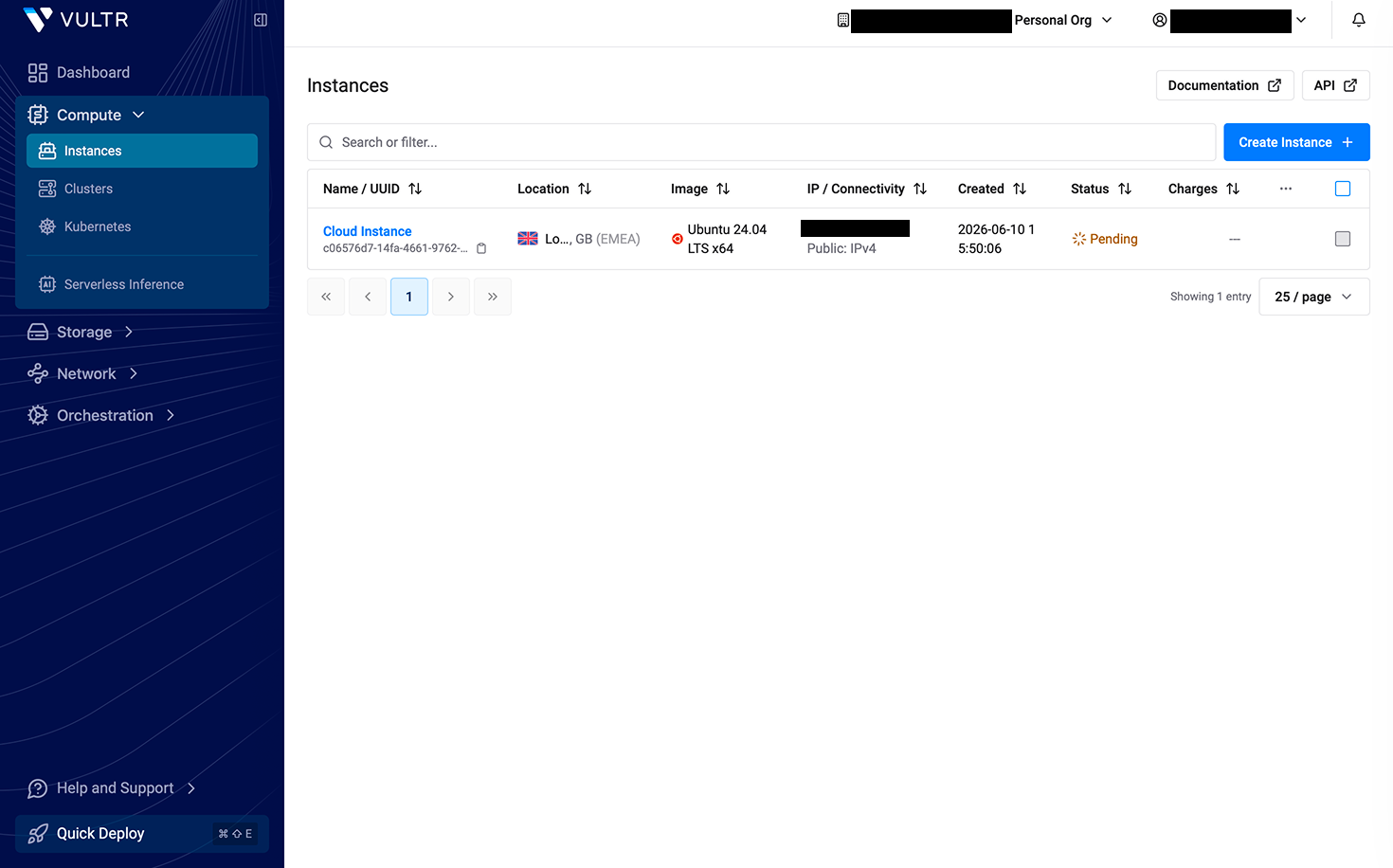
1.2.3.4 as a stand-in for your instance's IP.Next: open the dashboard
The instance is provisioned, but the install script needs up to ten minutes to finish setting up Dalmatian and HTTPS. After that the rest of setup is the same on every cloud. Continue in the Dashboard guide.